Start here
Your first video
Record, rough cut, finish and export a talking-head video, by hand or by asking your agent.
A Beacon video goes through four steps: record, rough cut, finish and export. Each step works by hand, and each one can be handed to your agent.
There’s no Save button to remember: every change is saved the moment you make it. See Projects and saving.
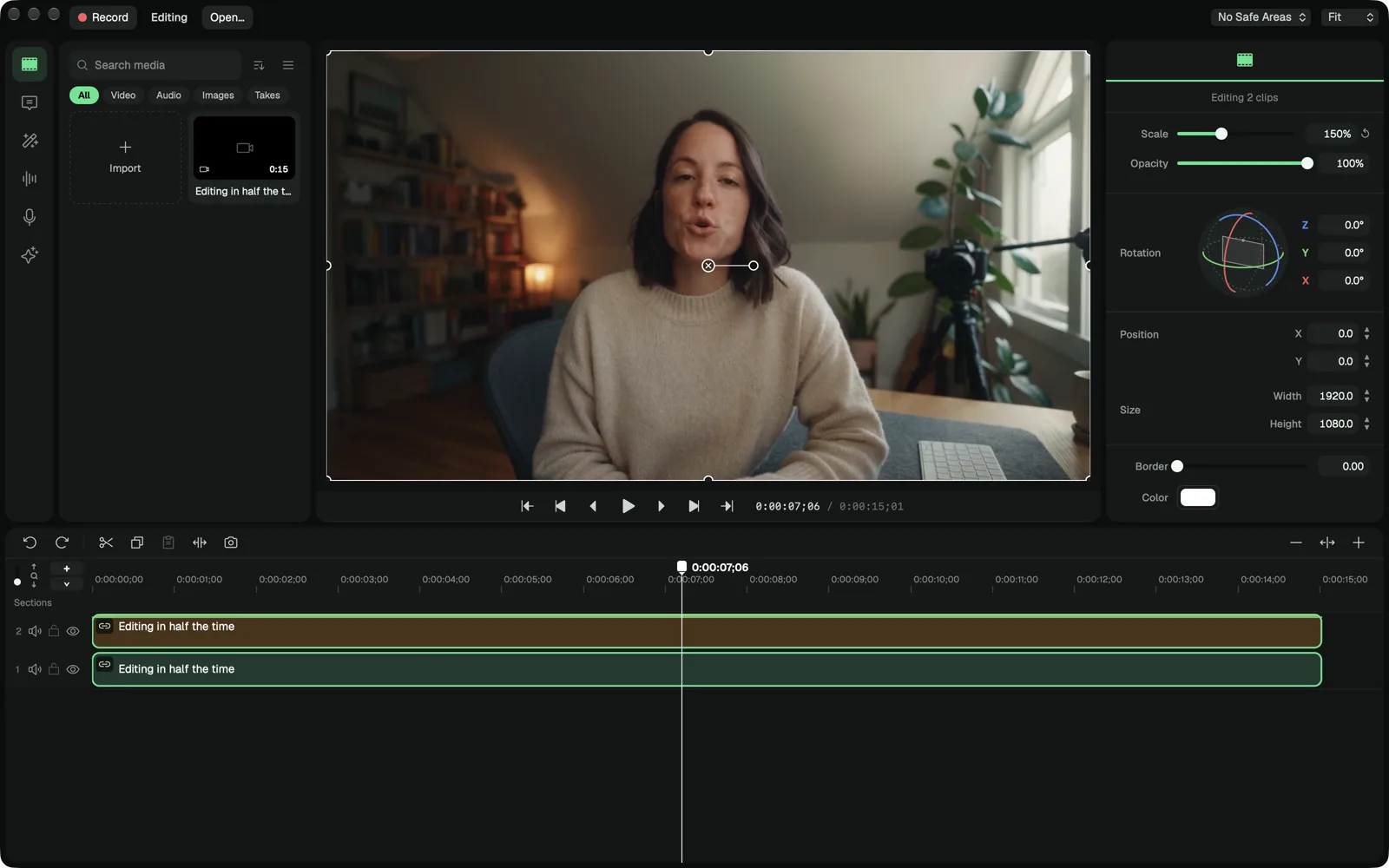
1. Record or import
New Project (⌘N), then Record… (⌘R) to record your screen, camera, microphone and system audio into the project. Already have footage? Import Media… (⌘I) takes video, audio and images, and Camtasia recordings (.trec) and projects (.cmproj). See Record.
Every change is saved as you make it. There’s no Save to forget.
2. Rough cut
Beacon transcribes your speech on your Mac. In the AI panel, Remove Retakes keeps one take of each line you said more than once, and Remove Silences cuts the dead air. Both mark what they’d cut on the timeline for you to look over before you apply. See Rough cut.
3. Finish
Add captions and punch-in zooms, give it a Film Look, cut away to a camera angle, drop in B-roll and motion graphics, and add music from the AI panel.
4. Export
Export… (⌘E) to MP4, MOV, GIF or WebM. See Export.
Or ask for it
With Claude Code connected and your project open, one request does the first pass:
Rough-cut my open Beacon project: mark the retakes and silences
for me to review, but don't apply them.
Claude reads the transcript, opens both reviews on your timeline and tells you what it found. You look it over and press Apply. More in what to ask your agent.
Checked against Beacon 0.18.0. Something wrong or missing? Open an issue.
Using an AI agent? Point it at /llms.txt, the docs index for agents, or give it every page in one file.